Home
   Try it for FREE!
   Buy now
   Support
   About Us
   Contact Us
   How to Program
 a keyword

Programming the Typing Assistant

Step 1: Launching TypingAssistant

Select TypingAssistant from the "Start" menu. Remember - you need to do this only the very first time you install it.
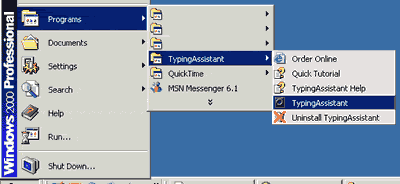
After that, TypingAssistant will startup automatically every time you restart your computer - until you ask it not to.
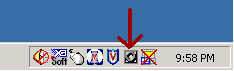
If it is already sitting in your system tray simply double click the icon to launch the TypingAssistant. (Your system tray is the little space next to your computer clock, where usually the various Instant Messenger icons (Yahoo IM, MSN Messenger, or AOL IM sit prettily).

Step 2: TypingAssistant Launch screen

Once you double-click the icon, you will see the launch screen shown below. From the list to the left, click on "Autoreplace".

Step 3: Adding or Modifying a keyword

Click on "Add" or "Modify" in the right section of the image shown below to add a new keyword, or modify an existing one.

Step 4: Adding or Modifying the actual keyword and the related text

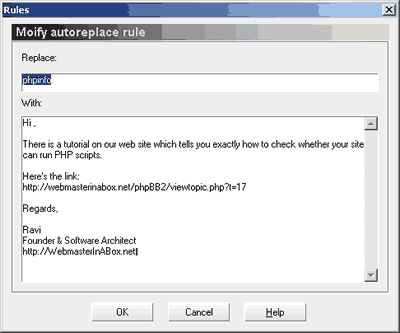
Enter the keyword ("phpinfo" in the example shown below) in the "Replace" section.

Below, in the "With" section, enter the complete text that you want to appear in your text editor when you type the keyword - it could be an entire email, or just a few sentences of text, or even just a link (for example, I type my various web site names so many times, that I have keywords for all of them (see example after image below):

Keyword Is replaced with....
wiab http://WebmasterInABox.net
1sa http://1SiteAutomation.com
cd http://CheapDomains.ws
tma http://TrueMerchantAccount.com
sip http://SlideInPopup.com


Your Price if you buy it today:

$67.00 $47.00


Supported platforms:
Windows 95, 98, Me, 2000, XP;

Minimal requirements:
Pentium 133 / 16 MB RAM;

Recommended:
Windows 98 or later, Pentium II - 300 / 64 MB RAM

All Rights Reserved. 2004. WebmasterInABox.net