Home
   Try it for FREE!
   Buy now
   Support
   About Us
   Contact Us
   How to Program
 a keyword

Cut Down Your Typing Time by up to 97%
Skyrocket your Productivity
Type Really Long Emails in just seconds
Simply by typing a few words!

What is TypingAssistant?
If you have been in e-Business more than a week, you already know how time consuming it is to have to type the same kinds of emails over and over again.

Click here for a 32-second demo

Click for a demo

Here's just a few examples of the kinds of emails that I send on an average day for my site WebmasterInABox.net:

  1. "Thank you for your purchase" emails (this was before I automated the process using 1SiteAutomation.com)
  2. "How to" emails
  3. "Need help" emails
  4. "Signatures"
  5. "Domain Names" within my emails

First, check out our 32-second movie that shows you the TypingAssistant in action. There are only two steps to program a key word (or hot-key) to correspond to ANY amount of text:


Two Steps to Skyrocketing Your Productivity

Step 1:

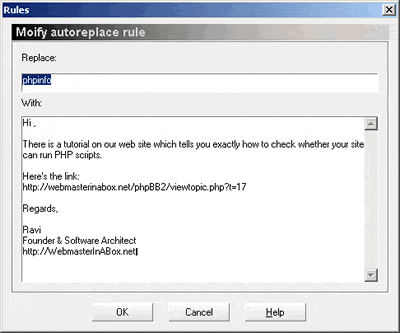
Choose a keyword, type out the email (or text) that maps to that keyword, and enter it as a autoreplace rule.

Step 2:

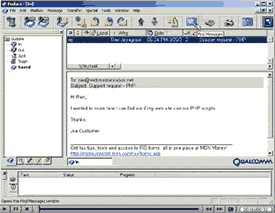
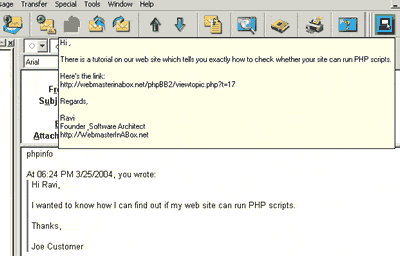
When you type the keyword in any text editor - Notepad, Outlook, Eudora, Word, Excel, Dreamweaver, Frontpage, etc - the pre-programmed text appears in a hover box (like a popup). If you wish to replace the keyword with the entire text, simply hit enter and the entire text is placed where your cursor is.

If you choose to ignore it, just keep typing and nothing happens.

If your computer lets you type, then you can use the TypingAssistant.

Works in ALL VERSIONS of the following text editors:

  • Notepad
  • Wordpad
  • Microsoft Outlook
  • Eudora
  • Dreamweaver
  • Frontpage
  • Microsoft Word
  • Notetab light
  • WordPerfect
  • Excel
  • Powerpoint
  • and any other editor you may be using...


Click here to see how easy it is to add a keyword

Your Price if you buy it today:

$67.00 $47.00


All Rights Reserved. 2004. WebmasterInABox.net